Start
hup on iPad and iPhone
Pick up the sessions you started at your desk. hup on iPad is a full terminal with tabs and split panes, and hup on iPhone opens the same sessions.
Accurate for hup Mac 0.1.483iPad and iPhone 1.1.3
Try it first
Before you add a host, the start tile offers a demo terminal: a pretend shell on the device, to try hup before you connect anything.
Add your machine
Each iPad and iPhone has an ssh key of its own. It’s made in the device’s Secure Enclave and never leaves it, so there’s no key file to copy around. You give its public line to your machine once.
On the start tile, open This iPad’s Key or This iPhone’s Key and copy it.
-
On your machine, add that line to
~/.ssh/authorized_keys. From a shell there:echo 'the line you copied' >> ~/.ssh/authorized_keys Back in hup, choose Add a Host and give the machine’s address and your user name there. An address is whatever reaches it: a name on your network, an IP address, or its name on your tailnet.
The first time, hup shows the host’s own key with its fingerprint. Check it and choose Trust This Key.
hup installs hupd on the machine and opens a shell.
To open a session that’s already running there, such as the agent you started on your Mac, hold + in the tab bar. It lists each host’s sessions under Running There.
The key bar
A terminal needs keys a touch keyboard doesn’t have. hup’s key bar sits above the on-screen keyboard, or along the bottom of the screen when there isn’t one.
- ctrl is sticky: tap it, then a letter, for Control-C and the rest.
- The paperclip attaches a photo or a file for the program in the pane.
- The mic starts speech to text.
Touch
- Drag up and down to scroll through a pane’s history.
- Pinch to make the text bigger or smaller.
- Tap a pane to work in it. Its header has buttons to split right, split down, zoom and close, and a long press on the header adds Find and Detach.
- Drag the gap between two panes to resize them.
With a keyboard
With a keyboard attached, hup has the Mac’s menus and the Mac’s shortcuts: ⌘T for a tab, ⌘D to split, ⌘K to switch to any session, ⇧⌘P for any command. On an iPad, hold ⌘ to see them all. The whole list is here too.
Tabs and panes
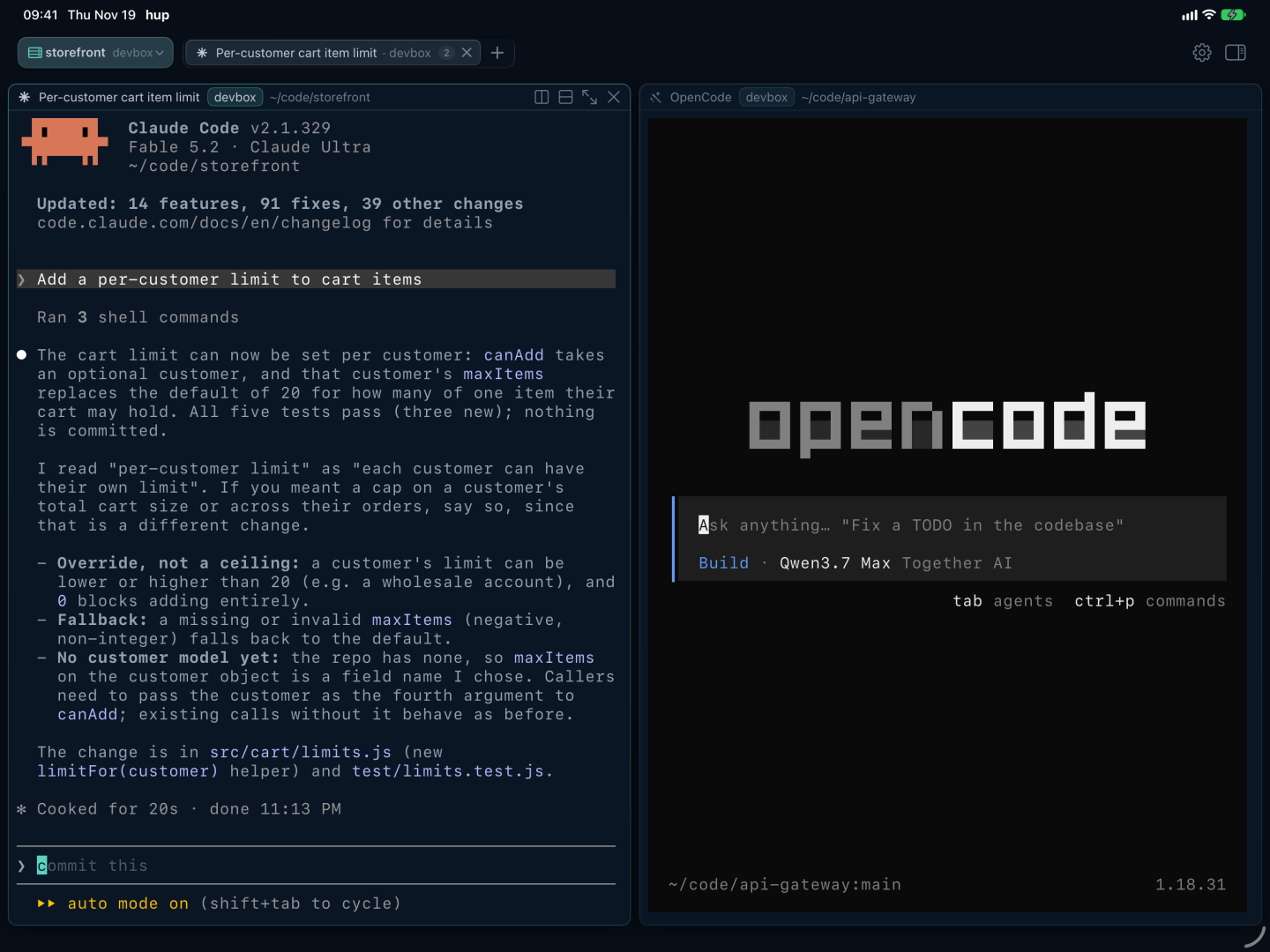
iPad Tabs run along the top, and each tab’s panes sit side by side or stacked, as on the Mac. In a narrow window, such as Slide Over, a tab shows one pane at a time.
iPhone Each tab shows one pane at a time. Its header says which pane it is of how many, and takes you to the next.
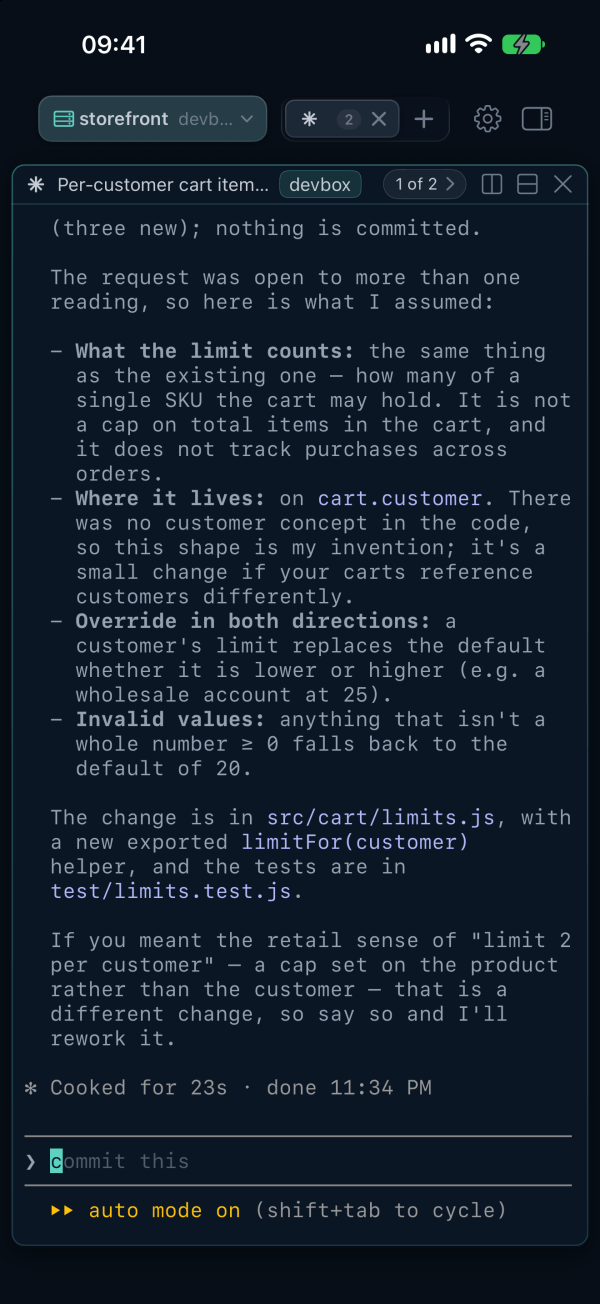
The menu under the host’s name, above the tabs, has new tabs on your hosts, Settings and the device’s key. Its New Tab On… (⇧⌘T) lists every place a pane can run, and the bar under the list’s filter chooses how it opens: Tab, Split Right or Split Down. That’s how you get a shell on one host next to an agent on another, in one tab. Hold + for Open Project and for sessions already running on a host.
In the background
iPadOS and iOS pause an app once it’s in the background. Your sessions aren’t affected, because they run on your machine. When you come back hup reconnects, and each pane shows what happened while you were away.
To hear from an agent while hup is in the background, see Alerts.
Trial and purchase
Opening your first session on a host starts a free trial. One purchase, once, unlocks hup on every iPad and iPhone signed in to your Apple Account, and Family Sharing covers your family. To use it on another device, choose Restore Purchase in Settings ▸ Purchase.