Machines
Sandboxes
A sandbox limits what an agent can reach. hup works with two kinds: Nono, which boxes an agent in on a machine you already have, and Sprites, which are Linux computers of your own in Fly.io’s cloud.
Accurate for hup Mac 0.1.483iPad and iPhone 1.1.3
Nono
Nono runs a program inside a box around one directory. In a Nono pane, a program can change files only in that directory and can’t read your other folders. The network stays open, so an agent can still fetch what it needs.
A sandboxed shell
In New Tab On… (⇧⌘T) choose This Mac, in Nono, or a host in Nono. The pane’s header shows a lock and Nono, so you can tell at a glance which panes are boxed in.
A profile for a sandboxed shell
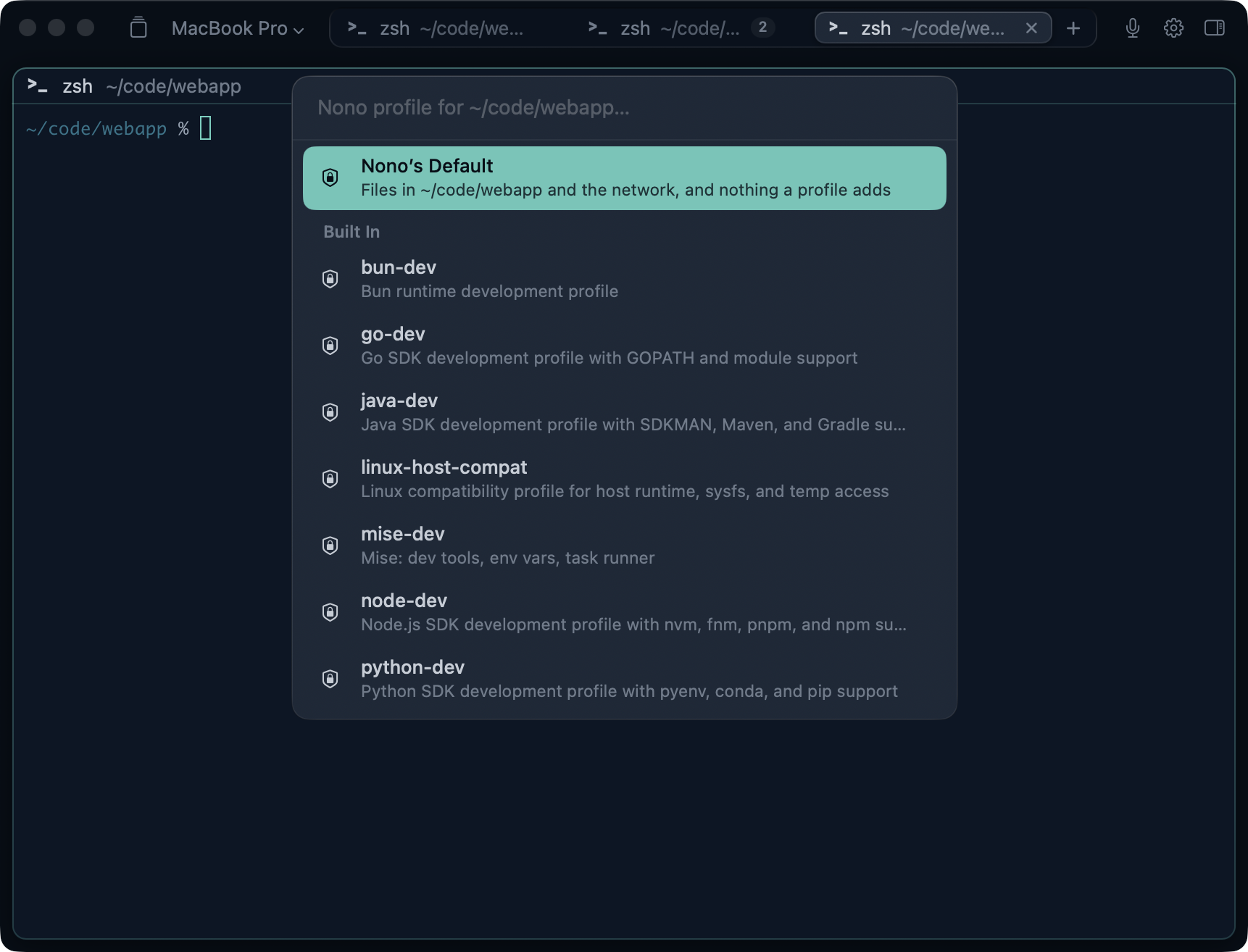
A Nono profile allows what a kind of work needs besides the directory. Nono’s own node-dev, python-dev, rust-dev and go-dev each allow that toolchain’s folders, for example.
Mac In New Tab On… choose This Mac, in Nono, with a Profile… and pick one from the list. The list is the profiles Nono has on your Mac. To use a profile kept in a file, type its path.
iPadiPhone In New Tab On… choose the host’s in Nono, with a Profile… row and pick one from the list. The list is Nono’s built-in profiles. To use another, type its name, or the path of its file on the host.
hup remembers the profile for that directory and the folders in it. From then on, the in Nono row opens a shell there with that profile, and says which one it is. To stop using it, open the list again and choose Nono’s Default.
Sandboxed agents in a project
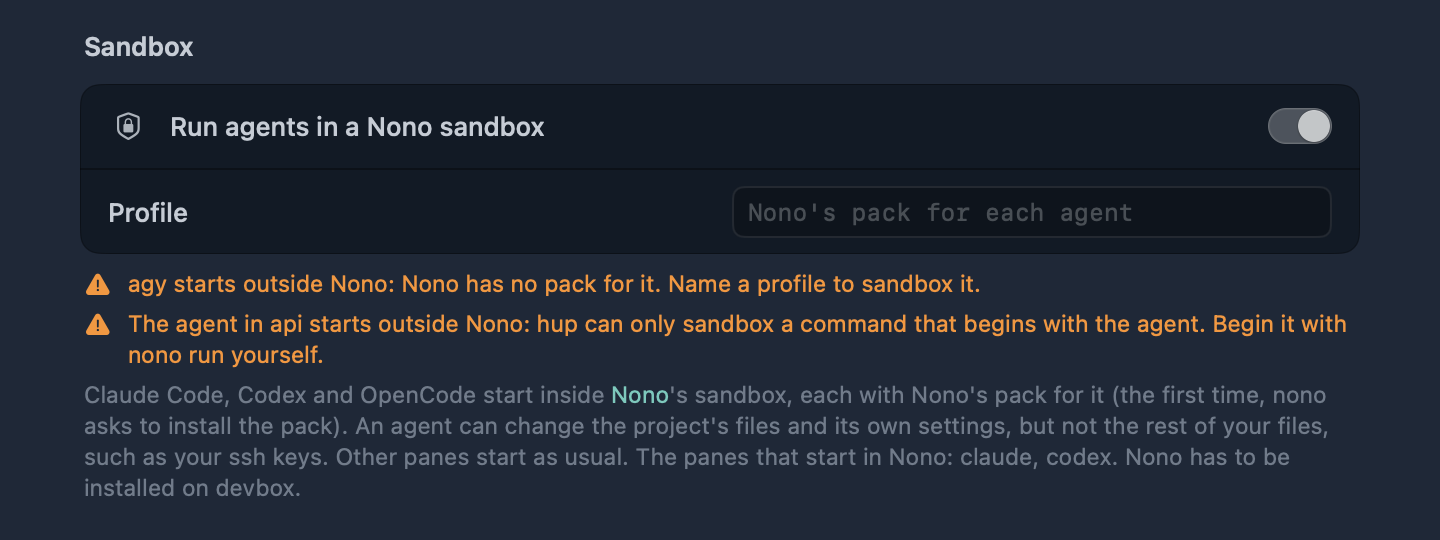
A project template has a switch, Run agents in a Nono sandbox. With it on, Claude Code, Codex and OpenCode each start inside Nono, under Nono’s own pack for that agent: nolabs-ai/claude, nolabs-ai/codex and nolabs-ai/opencode. The first time, Nono asks in the pane to install the pack.
To use a profile of your own, enter its name, or the path of its file, in Profile under the switch. Every agent in the template then starts under that profile. That includes an agent Nono has no pack for, such as Antigravity CLI.
Under the switch, hup lists the panes that start in Nono. It warns you about an agent that would start outside the sandbox. That happens when Nono has no pack for the agent and you’ve named no profile, or when the pane’s command doesn’t begin with the agent, as in cd api && claude. A pane whose command begins with nono runs as you wrote it.
By hand
hup runs whatever you start in a pane, so Nono’s own command works too:
nono run --profile nolabs-ai/claude --allow . -- claudeEither way it’s an ordinary hup session: it keeps running when the app quits, it has its notepad, and you can open it on your iPad and iPhone.
A file you drop on a pane lands outside the project’s directory, so an agent boxed in by Nono may not be able to read it.
Sprites on Fly.io
A Sprite is a Linux sandbox in your own Fly.io account: a separate, clean machine for an agent. hup treats it as a host. hupd runs inside it, and its sessions behave like any others.
Sign in
Mac In Settings ▸ Hosts, choose Add Sprite… first. Sign In with Fly.io… signs you in through Fly.io’s own command, and Use a Token… takes a token in its place.
iPadiPhone In Settings ▸ Sprites on Fly.io, add a Fly.io token. It’s kept in the device’s keychain.
Open one
New Tab On… lists the Sprites you’ve added, the others in your Fly.io organization, and New Sprite, which makes one and opens a shell in it.
Awake and asleep
Fly.io bills a Sprite for the time it’s awake, so an idle one goes to sleep. Each Sprite’s settings have Stay awake:
| While agents work | Awake as long as an agent in it is busy, then it can sleep. |
|---|---|
| Always | Awake until you change this. |
| Never | hup doesn’t hold it awake. |
When a Sprite sleeps, its panes say asleep · type to wake. Type, and it wakes with your sessions where they were.
Checkpoints
A checkpoint keeps a Sprite’s files as they are at one moment, so you can go back to them later. Make one before an agent starts a change you might want to undo.
Mac In Settings ▸ Hosts, open the Sprite. Checkpoints lists the ones it has, newest first. To add one, type a note such as “before the migration” and click Make Checkpoint.
iPadiPhone Open the Sprite in Settings and tap Checkpoints. The page lists the ones it has, newest first. To add one, type a note and tap Make Checkpoint.
Restore… puts the Sprite’s files back as that checkpoint has them, and restarts the Sprite. Everything running there ends. A pane open on it keeps what it showed: press Return in it to start its program again. Fly.io makes a checkpoint of its own before each restore, listed as Made by Fly before a restore. Restore that one to undo the restore.
Delete one
Delete Sprite… is in the Sprite’s settings. Everything on it is deleted permanently: its files, what runs there, and its checkpoints.